
Displaying Japanese under any language version of Mac OS
Drill the kanji: top of the site
if your computer is running the English edition of Mac OS, you can display Japanese in a Java applet using any recent browser. The procedure depends on the version you are using.
Mac
OS X
Mac
OS 9
Mac
OS 8.5
Pre-Mac
OS 8.5 versions
Mac OS X
"Multi-lingual at Birth,
Mac OS X supports multiple languages without any additional software." says Apple on its web site.
If you just want to display Japanese characters, apparently no configuration is required.
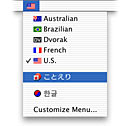
If you want to input (to type) Japanese, use the keyboard input menu.
To set the order of languages, use the International pane in System Preferences.
Mac OS 9
If you are running Mac OS version 9 or over, Japanese support is included in the system installation CD. You can add this support to a previously installed system. To do so, use the CD to make a custom installation, first selecting "Language kits", then "Software for the Japanese language". See below for a detailled procedure.
Step by step procedure for Mac OS 9
Insert your Apple system installation CD. In the window that should open automatically, double-click the Mac OS Install icon. Have no fear for your already installed system, you are only going to add to it, not replace it.
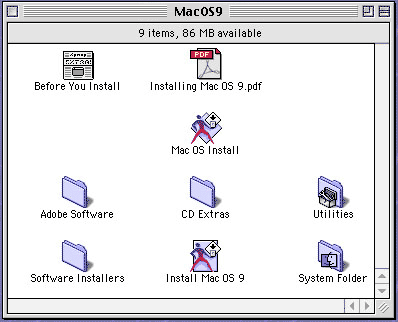
You will be confronted with the usual series of dialog boxes (like the one asking you to accept the Apple license, take the oath of allegiance to the Company and the like). Click along... If you have partitioned your hard disk, choose the partition that contains the system folder you want to add to (you might have several partitions with several operating systems).
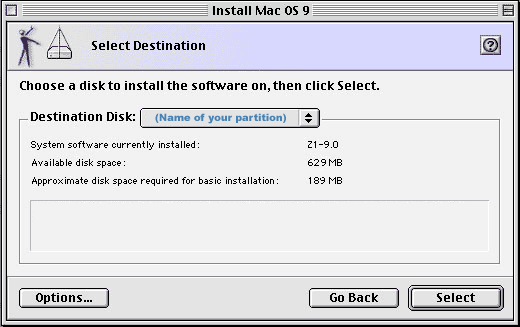
Click on Select.
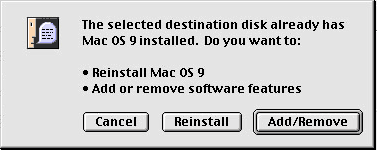
Click on Add/Remove
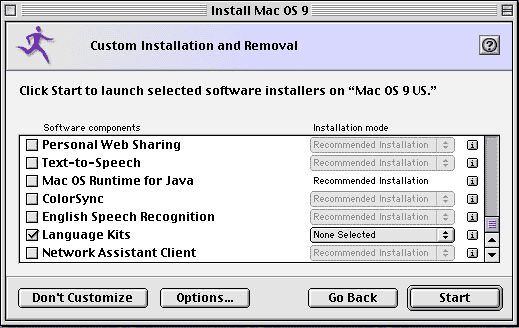
If you want to limit the installation to the Japanese language kit, open the list "None Selected" and deselect any unnecessary kit.
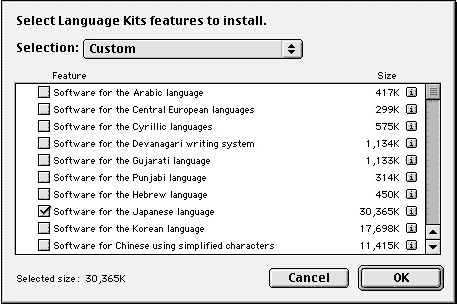
Please note that the installation will require 30 Mb on your hard disk. But afterwards, not only will you be able to display Japanese, you will also be able to write it, thanks to the IME (Input Method Editor) that will also be installed.
If you are running version 8.5 or one of the following upgrades, you will just have to install the Multilingual Internet Access from your system installation CD.
Step by step procedure for Mac OS 8.5
Insert your Apple system installation CD. In the window that should open automatically, double-click the Mac OS Install icon. Have no fear for your already installed system, you are only going to add to it, not replace it.
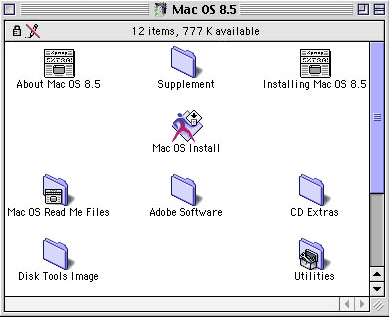
You will be confronted with the usual series of dialog boxes (like the one asking you to accept the Apple license and take an oath of allegiance to the company excecutives). Click along... If you have partitioned your hard disk, choose the partition that contains the system folder you want to add to (you might have several partitions with several operating systems).
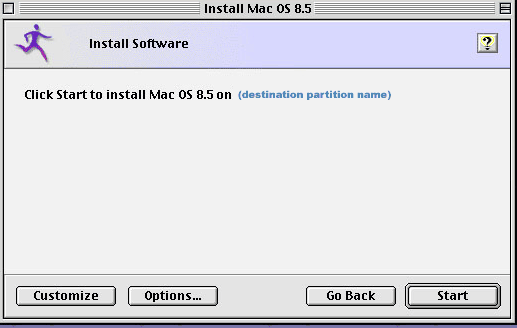
Click on Customize.
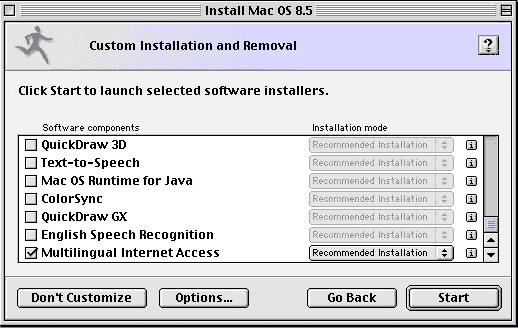
Make sure only Multilingual Internet Access is checked.
If you want to limit the installation to the Japanese language kit, open the list "Recommended Installation" and deselect any unnecessary kit.
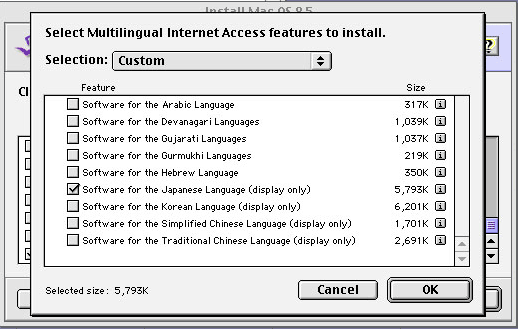
Please note that the installation will require 6 Mb on your hard disk.
If you are running an old version of Mac OS, you will have to purchase and install the Japanese Language Kit from Apple.
URL of this page: http://www.asahi-net.or.jp/~ik2r-myr/kanji/macos_r.htm
Top of the site site: http://www.asahi-net.or.jp/~ik2r-myr/index.htm
